Email in the inbox
Reply to conversations by email, and turn your support address into conversations.
The inbox works by email as well as in the messenger. Your team can answer from their own mailbox, visitors can write back from theirs, and mail to your support address becomes a conversation.
Answer from your mailbox
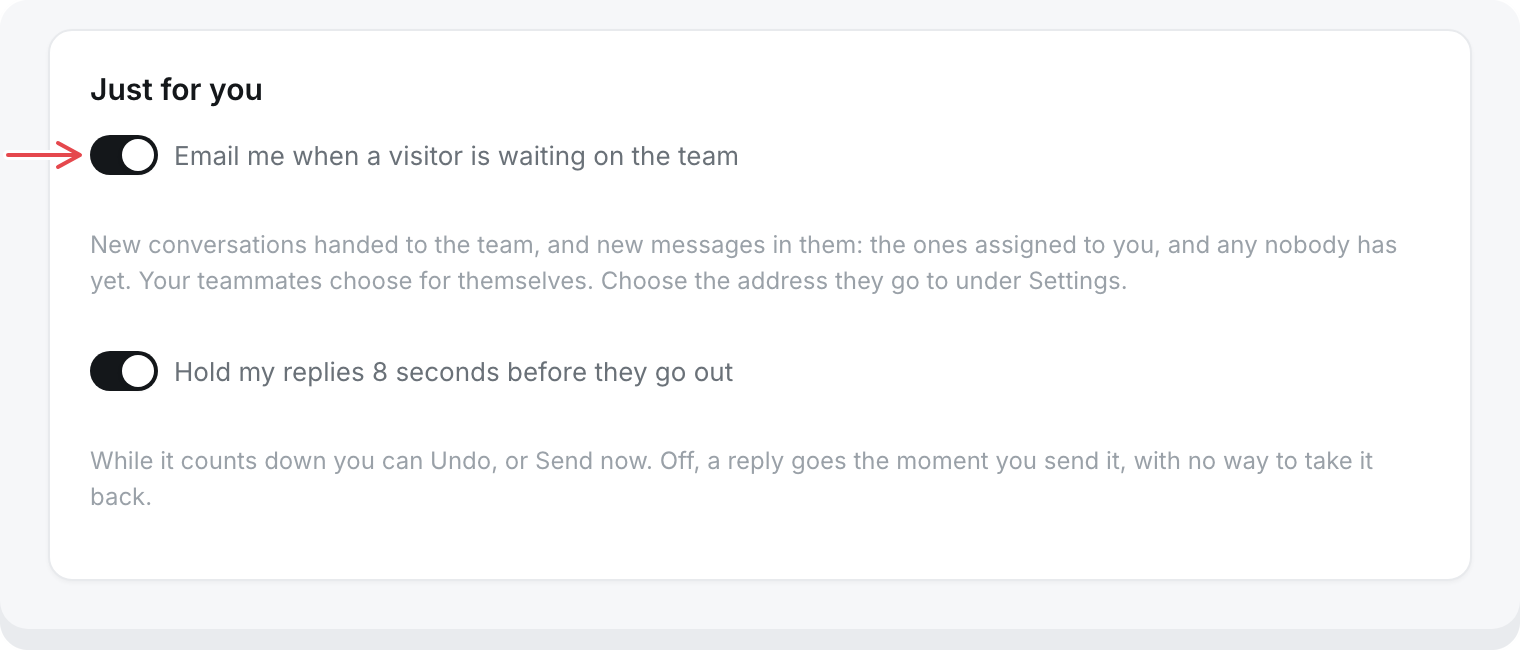
When a visitor is waiting, the inbox emails your team. Reply to that email, and what you write above the quoted text goes to the visitor as your reply. It shows in the conversation like any reply you send from the inbox, and you have the same few seconds to undo it there.
- Start your reply with
#noteto leave an internal note that only your team sees. - Each conversation has its own email thread, so a reply always reaches the right visitor.
- The reply has to come from the address you use to sign in to chat.sh. Mail sent from any other address is ignored.
Choose whether you get these emails under Inbox, Settings, Just for you.
Visitors reply by email
A visitor who leaves the messenger before you answer gets your reply by email. They can answer it straight from their mailbox. Their reply lands in the same conversation and opens it again for your team.
A reply from any address other than the visitor's is kept as an internal note, so nobody else can speak for them.
Forward your support address
Mail sent to your own support address, like support@acme.com, can come into the inbox too. Each new email starts a conversation that goes straight to your team, not to the AI. Your replies go back as plain email, in the same thread as the visitor's message.
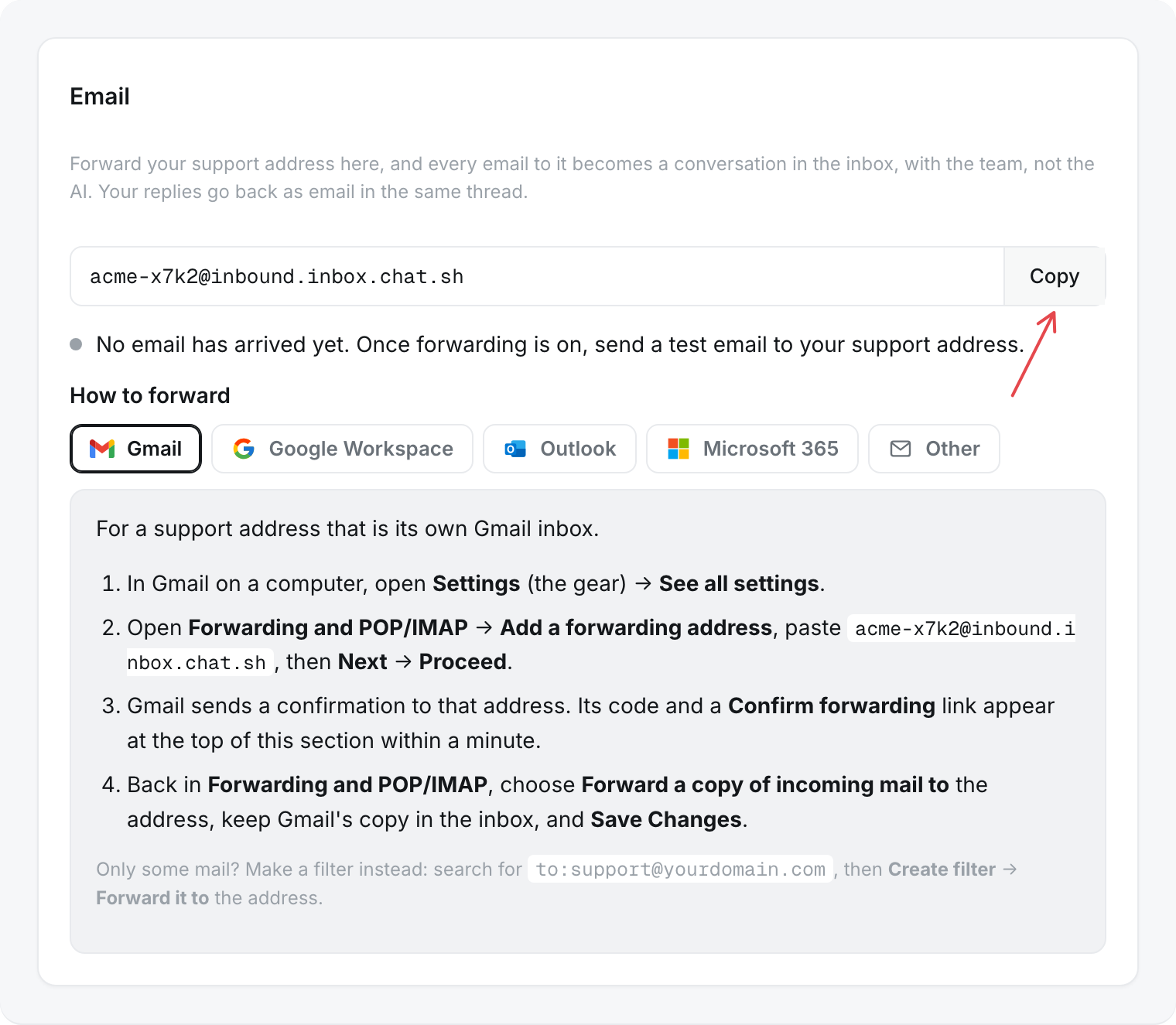
- Open Inbox, then Settings.
- Under Email, copy your forwarding address. It ends in
@inbound.inbox.chat.sh. - Under How to forward, choose your email provider for exact steps: Gmail, Google Workspace, Outlook, Microsoft 365, or another provider.
- Set your support address to forward to the forwarding address. Gmail and Google Workspace ask you to confirm first: see below.
- Send a test email to your support address from another address.
When the test email arrives, Forwarding works shows under Email in green, with when the last email came in. The test email also starts a conversation in the inbox. Until the first email arrives, Settings says No email has arrived yet.
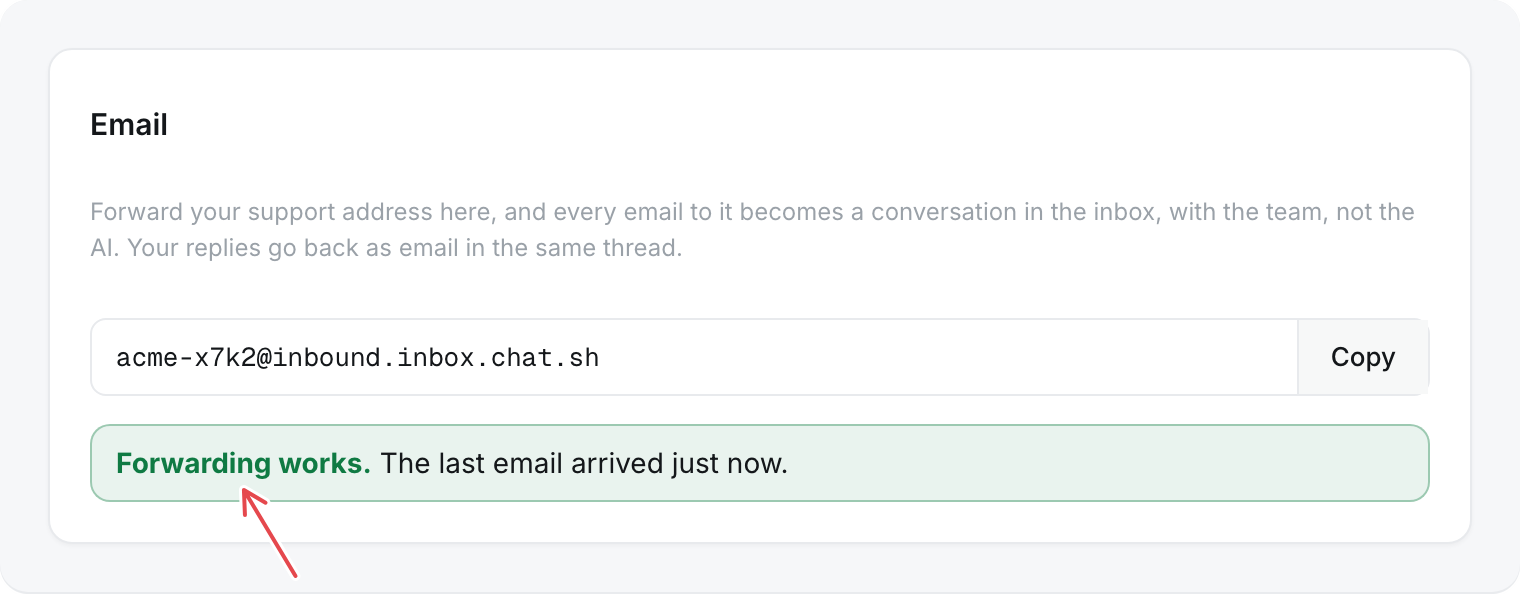
Keep the Settings page open while you set this up. The confirmation and the first email show there as they arrive, without reloading.
Confirm forwarding in Gmail
Gmail and Google Workspace send a confirmation to your forwarding address before they forward anything. Within a minute, Gmail asked to confirm forwarding shows under Email, with the confirmation code and a Confirm forwarding link.
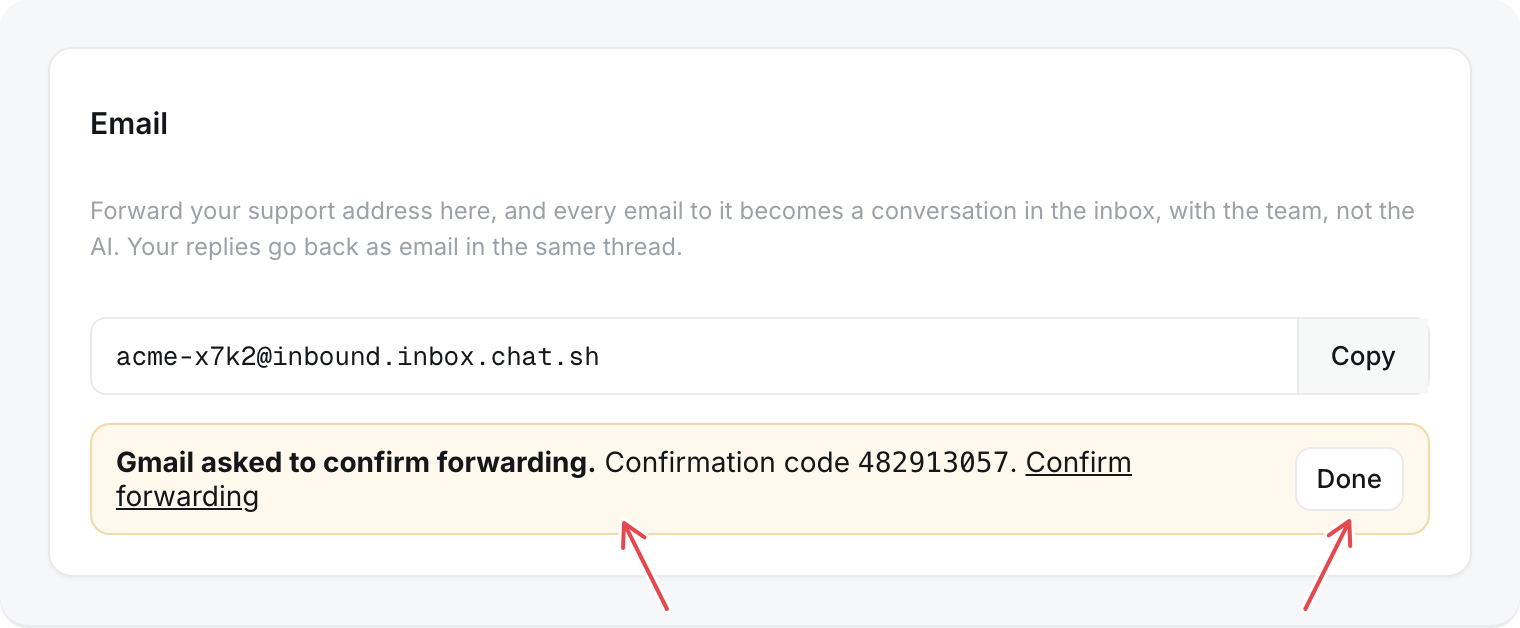
- Click Confirm forwarding, then confirm on the Google page that opens.
- Back in Gmail, open Settings, See all settings, Forwarding and POP/IMAP. Choose Forward a copy of incoming mail to your forwarding address, keep Gmail's copy in the inbox, and click Save Changes.
- Send a test email to your support address from another address.
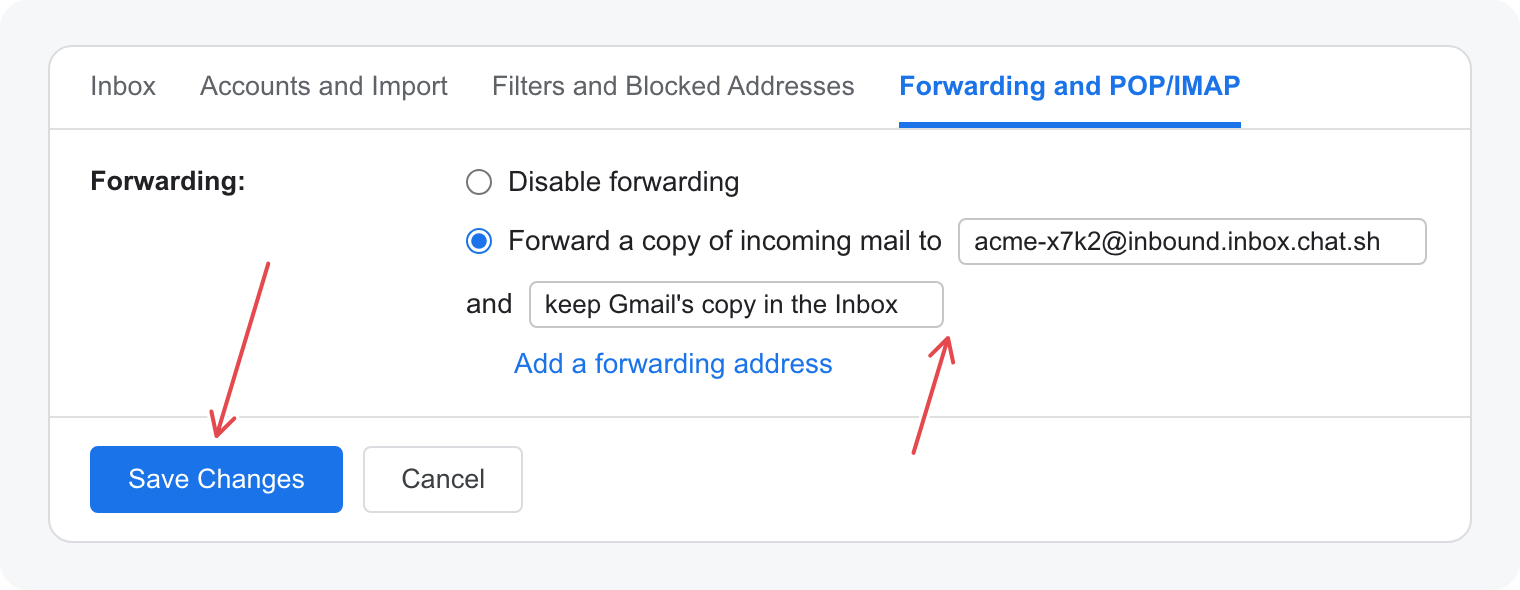
The notice goes away when the first forwarded email arrives. If you have confirmed and want it gone sooner, click Done.
Outlook and Microsoft 365 have no confirmation step. Mail is forwarded as soon as you save.
Microsoft 365 blocks forwarding outside your company by default. If mail does not arrive, an admin needs to allow automatic forwarding in Microsoft Defender's outbound spam policy.
What comes through
- Only the new part of each email is kept. The quoted earlier message and the sender's signature are left out.
- Attachments are not stored. The conversation names each file, so you know to look for it in the original email.
- Automatic replies, like out-of-office messages, are ignored.
When an email does not arrive
If an email to a visitor bounces or is marked as spam, a line in the conversation says so, with the reason. The address is not emailed again.
Replies come from chat.sh
Emails to visitors come from your help center's name via chat.sh. On a paid plan, you can send them from your own address instead. See Send from your own address.