Set up the messenger
Turn the chat widget on and choose its title, greeting, logo, colour, and size.
The messenger is a chat widget for your app or site. It answers from your help center, and hands the visitor to your team when they ask for a person.
Set it up under Messenger, then Settings. Then put it on your site. See Install the messenger.
Turn it on
The On switch starts off. While it is off, visitors see nothing, even if the tag is already on your pages. You can install the tag first and turn the messenger on when you are ready.
Changes reach visitors only after you select Save.
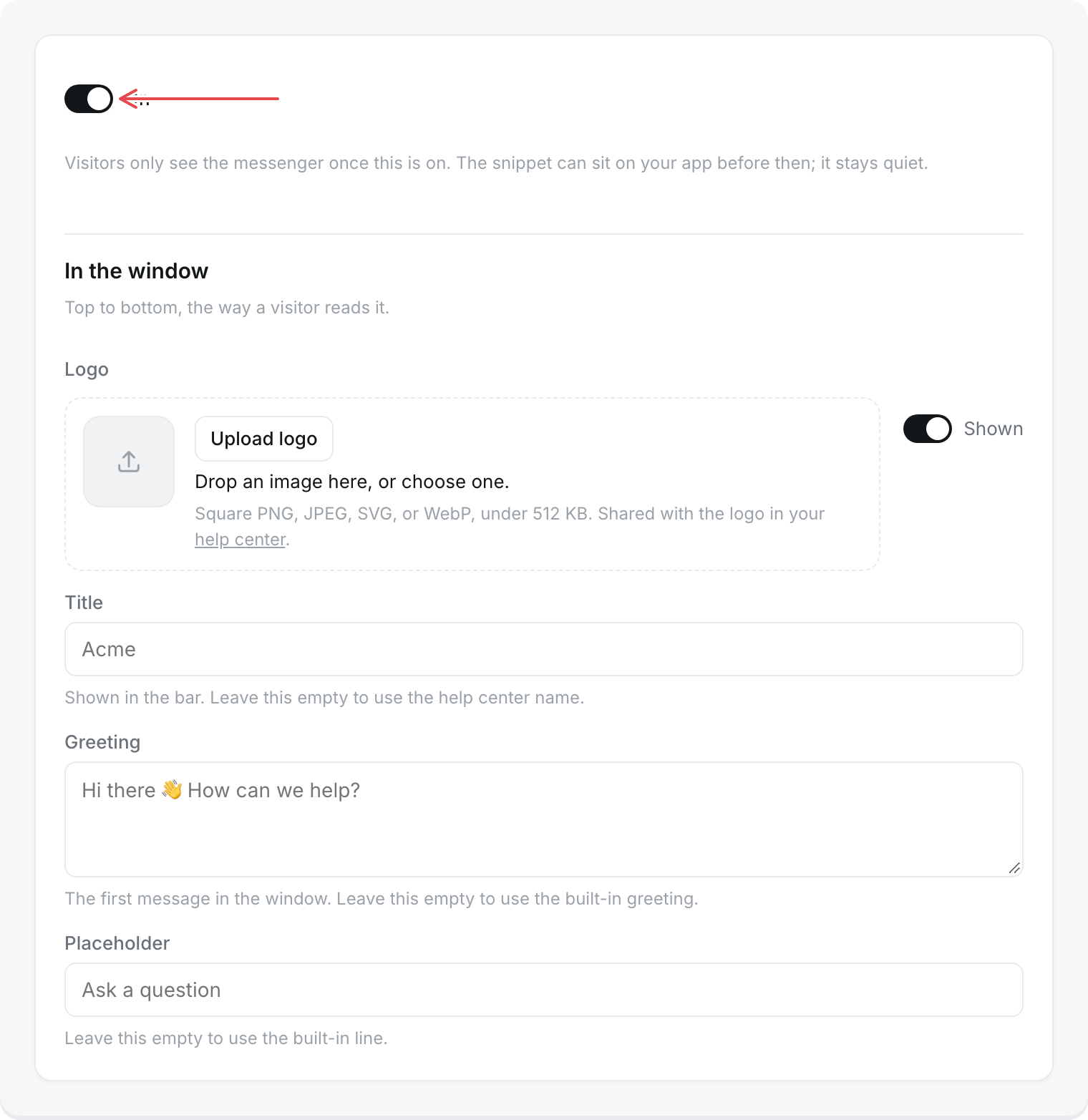
In the window
These fields are listed in the order a visitor reads them.
- Logo. A square PNG, JPEG, SVG, or WebP under 512 KB. It is the same logo as your help center, so replacing it here replaces it there too. Set it to Hidden to show the title alone in the bar. With no logo uploaded, the bar shows the first letter of your help center name.
- Title. Up to 40 characters, shown in the bar. Leave it empty to use your help center name.
- Greeting. Up to 280 characters. It is the first message in the window. Left empty, it is "Hi there 👋 How can we help?"
- Placeholder. Up to 80 characters, shown in the empty message box. Left empty, it is "Ask a question".
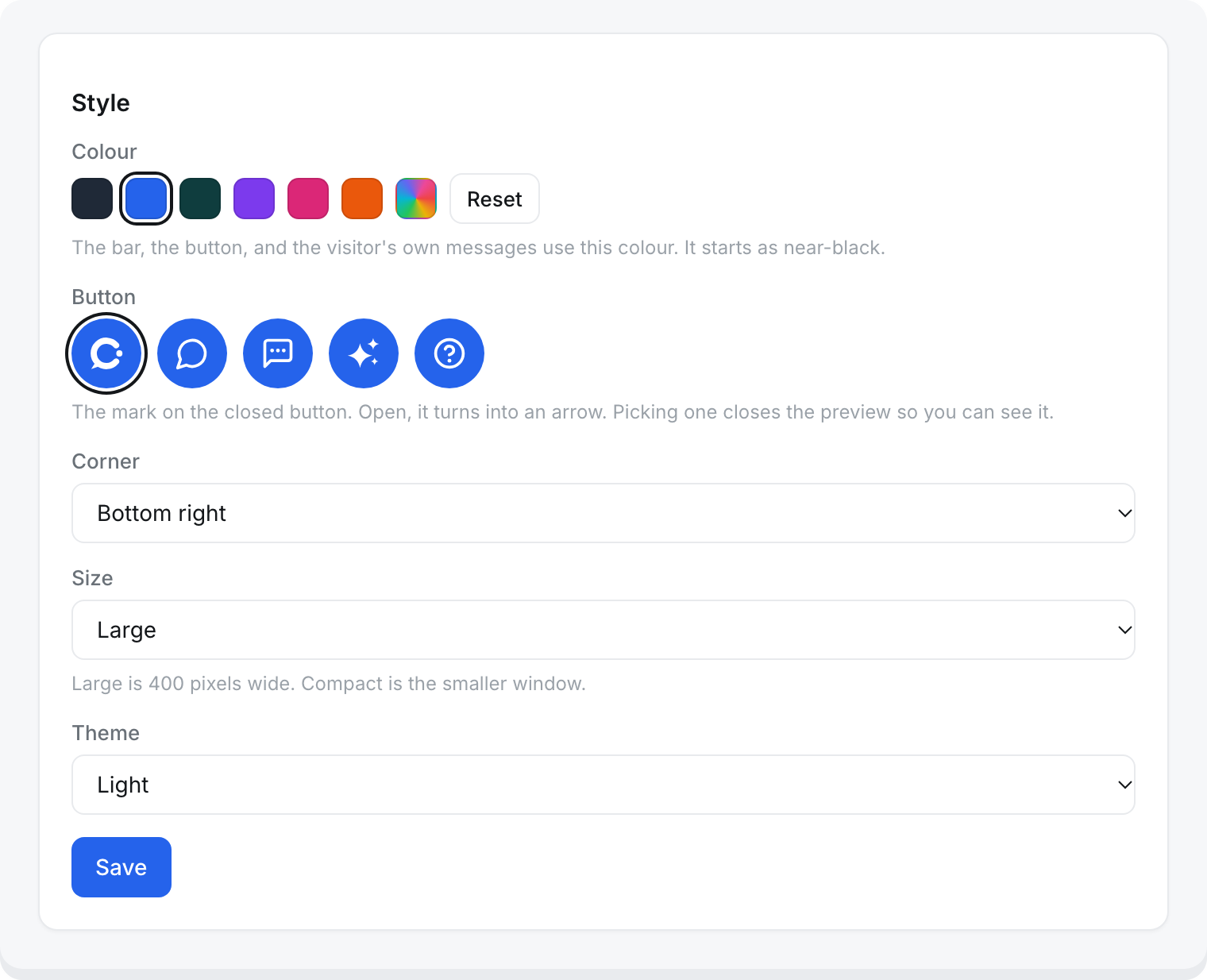
Style
- Colour. Used for the bar, the button, and the visitor's own messages. Pick one of the six swatches or any colour, or select Reset to go back to near-black.
- Button. The icon on the closed button: chat.sh, Bubble, Message, Sparkle, or Question. When the window is open, the button shows an arrow.
- Corner. Bottom right or Bottom left.
- Size. Large is 400 × 800 pixels. Compact is 320 × 520 pixels.
- Theme. Light, Dark, or Match the visitor's device.
On screens narrower than 480 pixels, the open window fills the screen whatever the size.
Preview
The Preview next to the form follows your changes before you save. Questions asked in the preview get real answers from your help center. They use no credits and are not counted in analytics. This works while the messenger is off too.
Show it on your help center
To add the messenger to your public help center as well, open Help center, then Appearance, and turn on Show the messenger on your help center. It looks the way you set it up here. The switch is greyed out until the messenger is on.
Settings that live in the Inbox
Two settings that affect what visitors see after they ask for a person are under Inbox, then Settings, in In the messenger:
- Usually replies in: A few minutes, About an hour, A few hours, or A day. Visitors see it only when nobody on the team has the inbox open.
- Show visitors when the team is typing: on by default.
See Talk to a person for how these show.
What you cannot change
- The text of the widget's own buttons and messages is English. AI answers follow the visitor's language.
- "Powered by chat.sh" shows at the bottom of the window and cannot be removed.