Import from Notion
Turn a help center you keep in Notion into collections and articles.
If you keep your help center in Notion, bring it over in one go: its sections become collections and its pages become articles. Importing is part of the paid plans.
Import
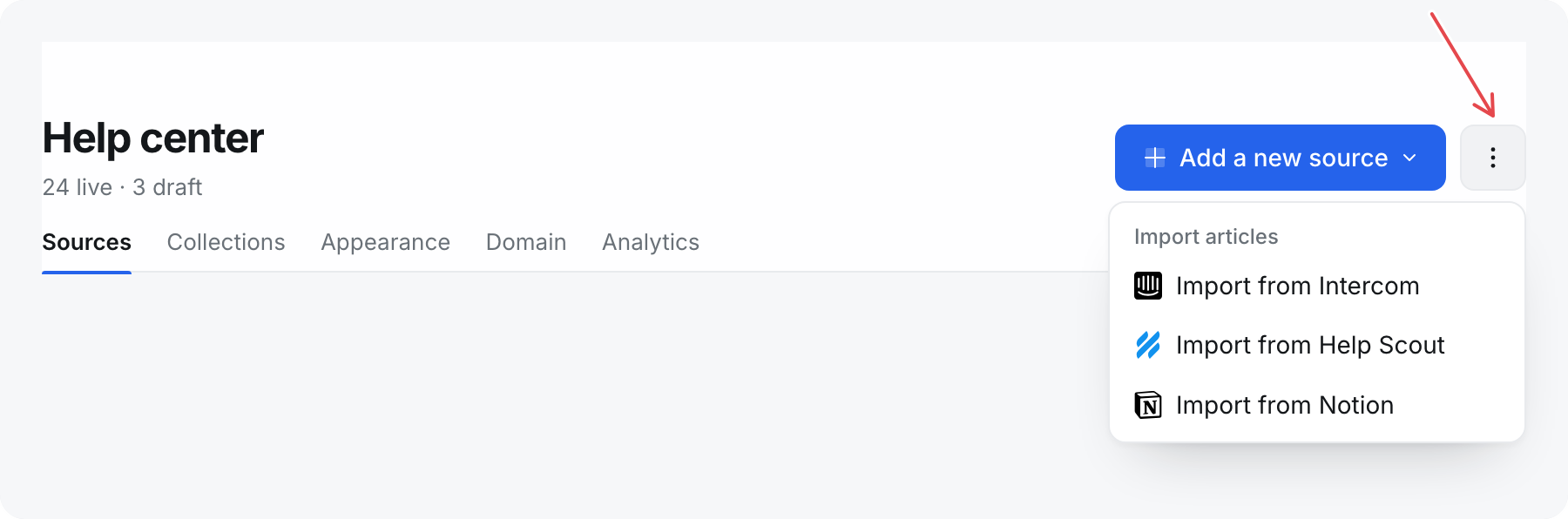
- Open Help center.
- Select the ⋮ button beside Add a new source, then Import from Notion.
- Select Connect Notion. Notion's own screen opens.
- Choose your Notion workspace, then tick the page that holds your help center. Everything under it comes along.
- Back in chat.sh, wait while it reads what you shared. A large help center takes a minute or two. Then pick the page under Page to import.
- Check the collections and articles it found. To review everything before it goes live, tick Bring them in as drafts.
- Select Import articles.
You can close the window while it runs. The import keeps going, and articles appear as they land.
chat.sh only reads the pages you pick. It never changes anything in Notion.
How your pages are arranged
chat.sh follows the shape of your Notion page:
- Sub-pages of the page you picked become collections, and the pages inside them become articles.
- Headings on a contents page become collections, with the pages listed under each heading as its articles.
- Databases become collections, and each row becomes an article.
- A page with its own writing becomes an article. A page that only lists other pages is used for structure, not imported as an article.
If something lands in the wrong place, move it afterwards. An article's address does not include its collection, so moving it never breaks a link.
What comes over
Text, headings, lists, to-dos, quotes, callouts, tables, code blocks, and links come over as formatting. Images, videos, and PDFs are copied to chat.sh during the import, because Notion's own file links stop working after an hour.
What does not come over:
- Pages you did not share with chat.sh
- Comments
- Other attached files, like Word documents or audio. Add them again after the import.
Can't find your page?
If the page is missing from Page to import, it was not ticked on Notion's screen. Select Share other pages, tick it, and come back.
Run it again
Import the same page again after editing it in Notion. Pages are matched to the articles you imported before, so nothing is duplicated, and articles you edited in chat.sh are left as you wrote them.
Page allowance
Articles that would go past your page allowance come in as drafts. Publish them once there is room.