Talk to a person
How a visitor reaches your team from the messenger, and what they see while they wait.
Every messenger conversation starts with the AI. A visitor reaches your team by tapping Talk to a person. The conversation then goes to your inbox.
Where the button shows
After the visitor's first question:
- Under an answer the help center could not give, or when answers are paused because credits ran out.
- Otherwise, above the message box.
It shows in every conversation the AI is still answering. There is no setting to hide it, and no automatic handover.
Leaving an email
Your team needs a way to reply after the visitor closes the page.
- Anonymous visitors are asked: "Leave your email so the team can reply, even after you close this." They enter an address and select Send.
- Visitors you named with
identifygo straight through, with the email you passed. See Identify signed-in users.
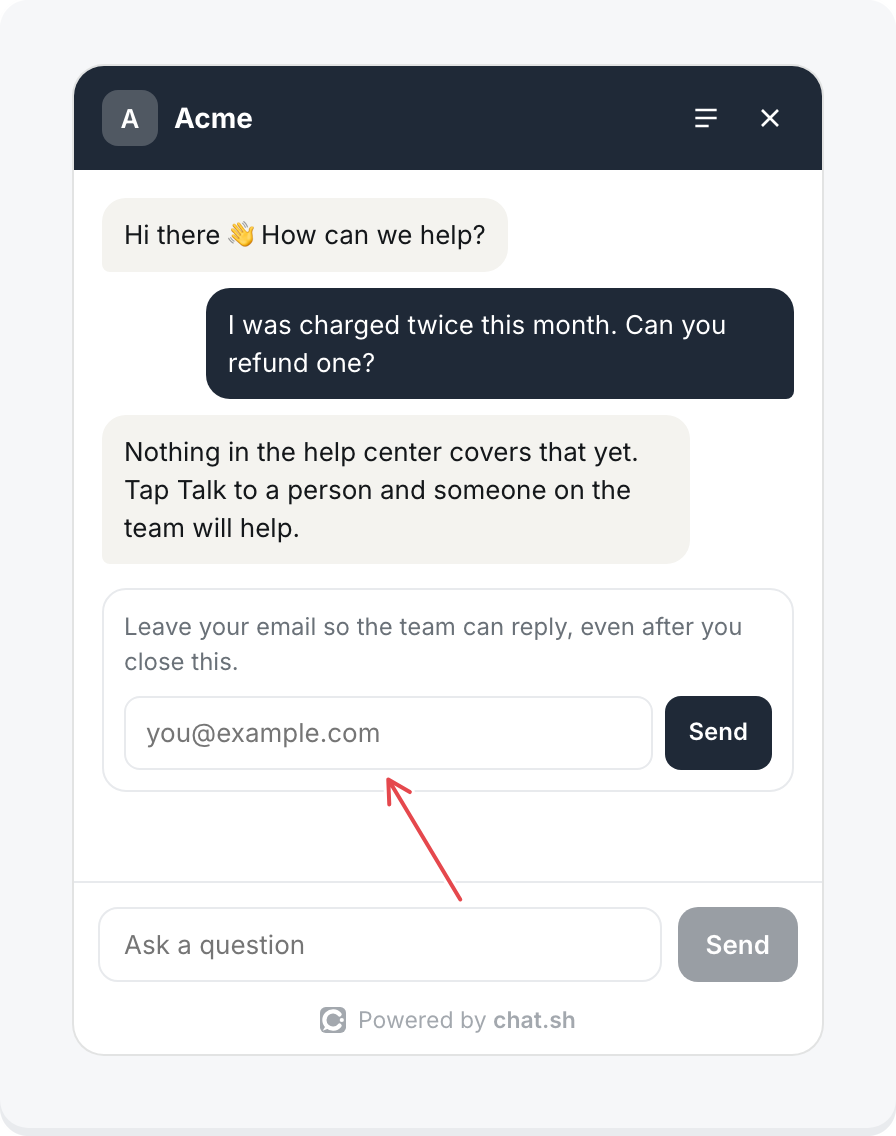
Addresses that cannot receive mail are refused:
- A malformed address: "Enter a valid email address."
- A disposable address: "Use an email you'll keep, so the team's reply reaches you."
- A domain with no mail server: "That email can't receive replies. Check it and try again."
A visitor your team has blocked sees "The team can't take this right now." See Spam and blocking.
The page the visitor was on is saved with the conversation, without its query string.
While they wait
The message box changes to "Write to the Acme team", with your help center name. Above it, one line says whether anyone is around:
- When a teammate has had the inbox open in the last 5 minutes: "The Acme team is online. Usually replies in a few minutes."
- Otherwise: "The Acme team is away right now. Usually replies in a few hours. We'll email you at ada@acme.com when they do." Without an email, the last sentence is "They'll reply here."
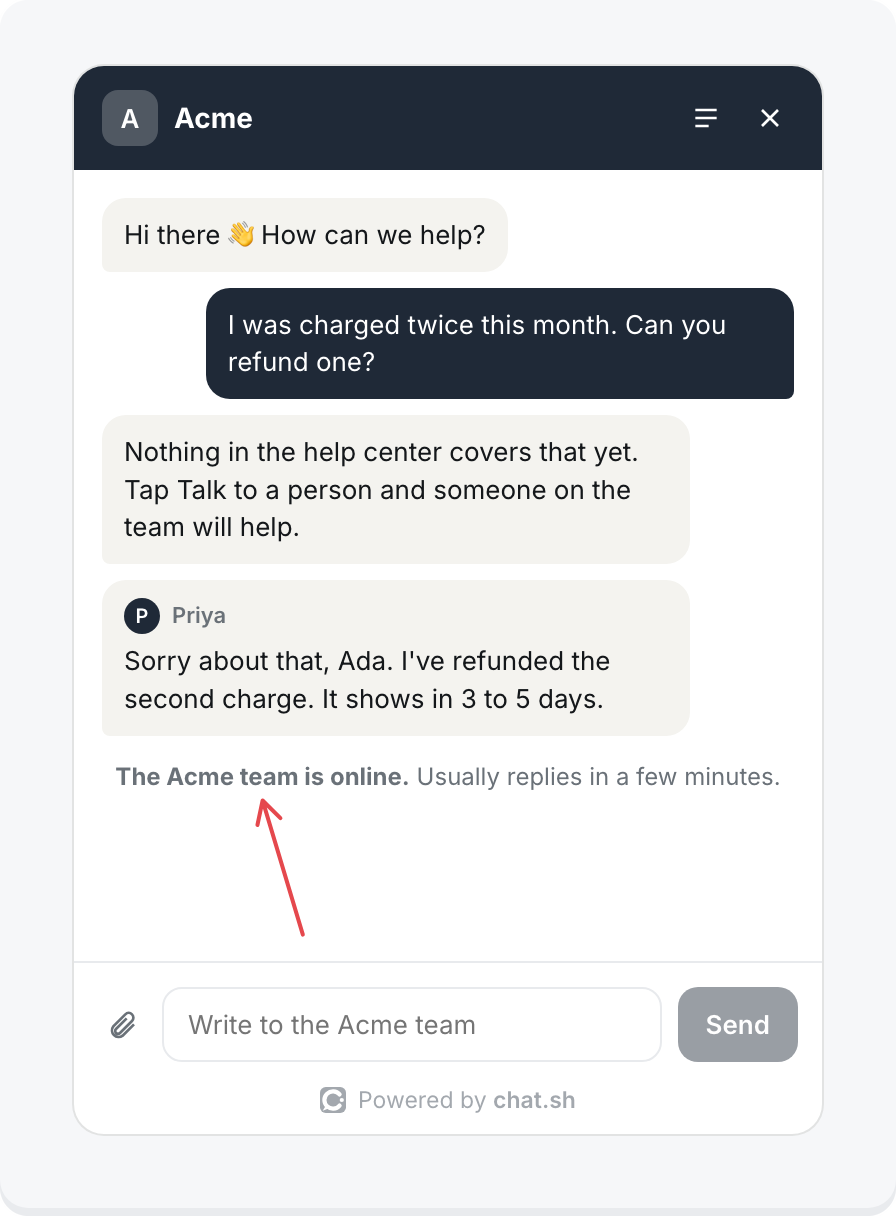
The reply time comes from Usually replies in under Inbox, then Settings.
When your team replies
- The reply shows with the teammate's name and picture.
- While a teammate is typing, the visitor sees "Priya is typing". Turn this off with Show visitors when the team is typing under Inbox, then Settings.
- Replies can arrive a few seconds after they are sent, because teammates may have a short hold to undo them.
- With the window closed, the corner button shows how many replies are new.
Reply emails
If the visitor has not had the conversation open for 2 minutes, the reply is also emailed to them, with the subject "New reply from Acme".
- View conversation takes them back to the page they were on and opens the conversation there.
- They can answer by replying to the email. See Email in the inbox.
Emails go only to an address the visitor typed or that you passed with identify.
Files
After handing over, visitors can attach files with the paperclip, or by pasting them:
- Pictures (PNG, JPEG, GIF, WebP), PDFs, and text files (.txt, .log, .csv, .md, .json).
- Up to 4 MB each. Larger photos are shrunk automatically.
- Up to 5 files a message, and 30 in a conversation.
Resolved conversations
When your team resolves the conversation, the visitor sees "This conversation was marked resolved. Write here if you need anything else." Writing again reopens it for your team, not the AI.
Back to the AI
A conversation stays with your team once handed over. To ask the AI again, the visitor opens the conversations list and selects New conversation.