Set up the inbox
Open the inbox through the messenger, email, or both, and see who on your team can use it.
The inbox is where your team answers people. Conversations arrive two ways:
- From the messenger, when a visitor taps Talk to a person.
- By email, when someone writes to your support address and it forwards to chat.sh.
Inbox is the first item in the sidebar. It has two tabs: Conversations and Settings.
The setup screen
Until the inbox has a way in, Conversations shows a setup screen. Finish either card, or both. The inbox opens as soon as one is done.
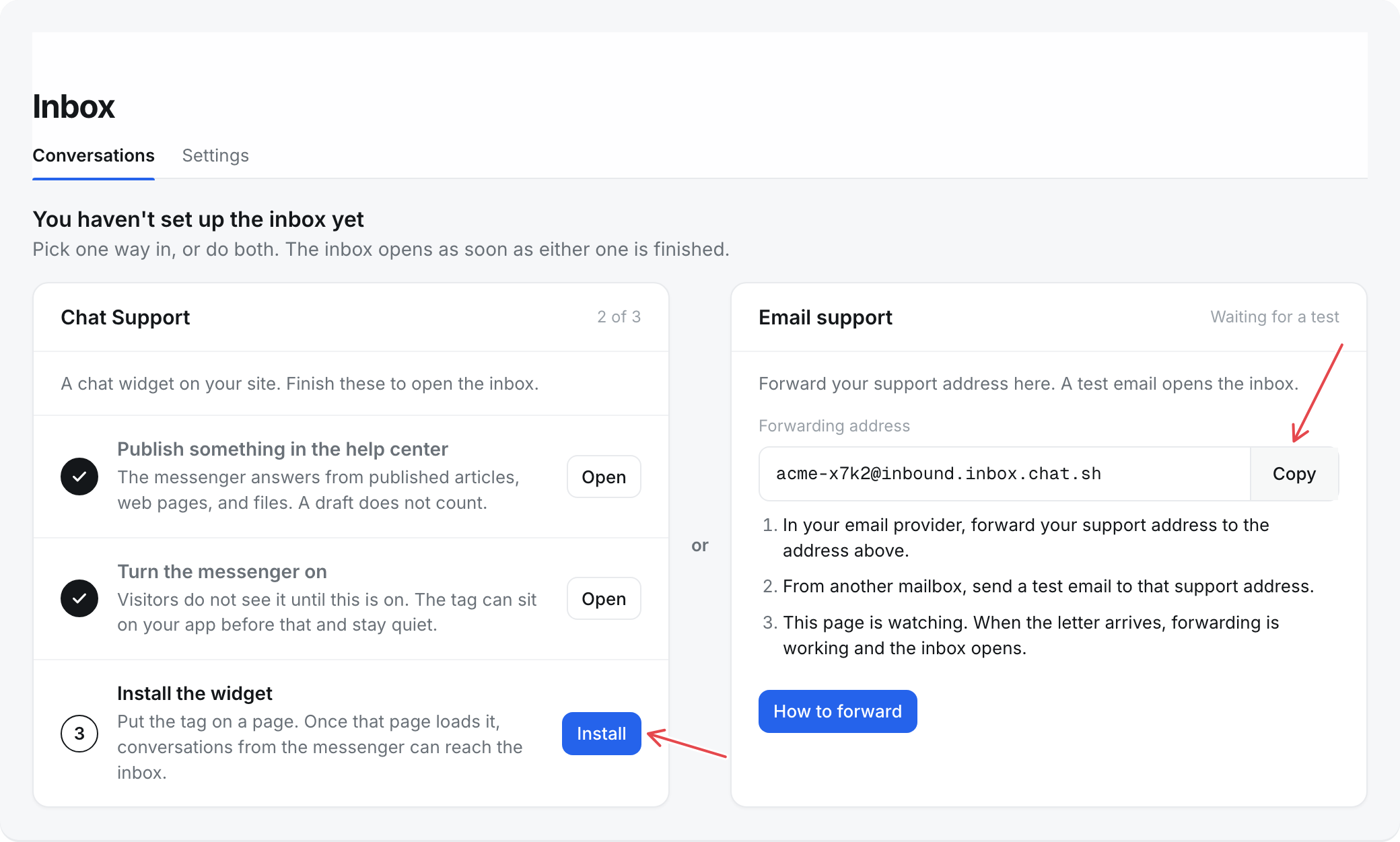
Chat Support
Three steps, each with a button that takes you there:
- Publish something in the help center: at least one published article, or a web page that has been read.
- Turn the messenger on: see Set up the messenger.
- Install the widget: see Install the messenger. The step is done once the messenger has loaded on your site.
Email support
Forward your support address to the forwarding address shown on the card. The card shows Waiting for a test until the first email arrives. See Email in the inbox.
How a conversation reaches your team
- A visitor taps Talk to a person in the messenger. The conversation becomes Open and the transcript notes "The visitor asked for a person". See Talk to a person.
- A teammate replies to a conversation that is still With the AI. That teammate takes it over.
- An email arrives at your support address. It goes straight to your team, not the AI, and is marked via email in the list.
A conversation the AI cannot answer stays with the AI until the visitor asks for a person. Once the visitor has been quiet for 30 minutes, it shows under With the AI, then Needs a look, for your team to read. See Find a conversation.
What the AI does in the inbox
- Reads its own answers once they have gone out, and marks the conversations it could not answer under With the AI, then Needs a look. See Find a conversation.
- Rewrites a reply you have written when you ask. See Reply to a conversation.
It does not write or send replies itself. Once your team has a conversation, the AI stops answering it.
Who can use it
Everyone in the workspace can use the whole inbox, including its settings. There are no separate inbox roles.
How many people a workspace can have depends on the plan, counting pending invites:
- Lifetime with 1,000 credits a month: 3 people.
- Lifetime with 5,000 credits a month: 5 people.
Settings, then Team shows how many seats are taken. Only an owner can invite or remove people. See Invite a teammate.
What it costs
- Replies from your team, notes, and rewrites are free.