Import from Intercom
Bring your Intercom help center over in one go, with its collections, images, and links.
Move an Intercom help center to chat.sh without copying articles by hand. Every collection and published article comes over, and the old links can keep working. Importing is part of the paid plans.
Get an access token
- In Intercom, open Developer Hub and create a new app. Any name will do.
- In the app, open Authentication and copy the Access token.
The token is used for this import only. chat.sh never stores it.
Import
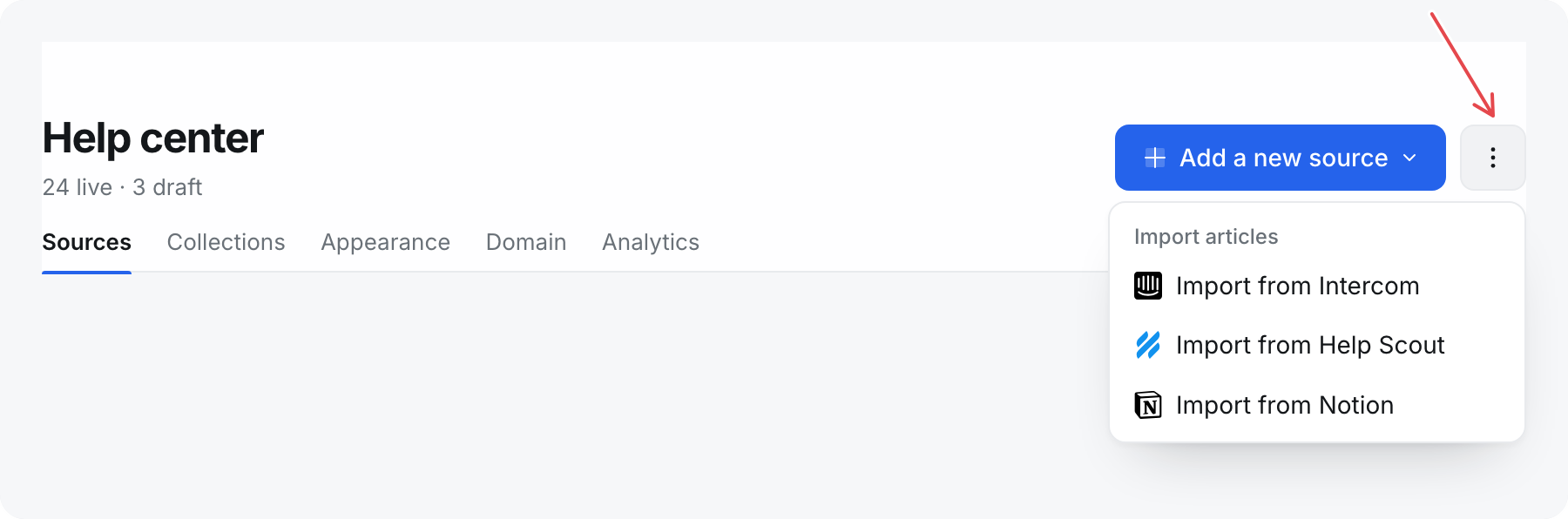
- Open Help center.
- Select the ⋮ button beside Add a new source, then Import from Intercom.
- Paste the access token and select Continue.
- Check what will come over: collections, articles, and the pages they use. To bring over drafts too, tick Also bring over drafts. They stay drafts here.
- Select Import articles.
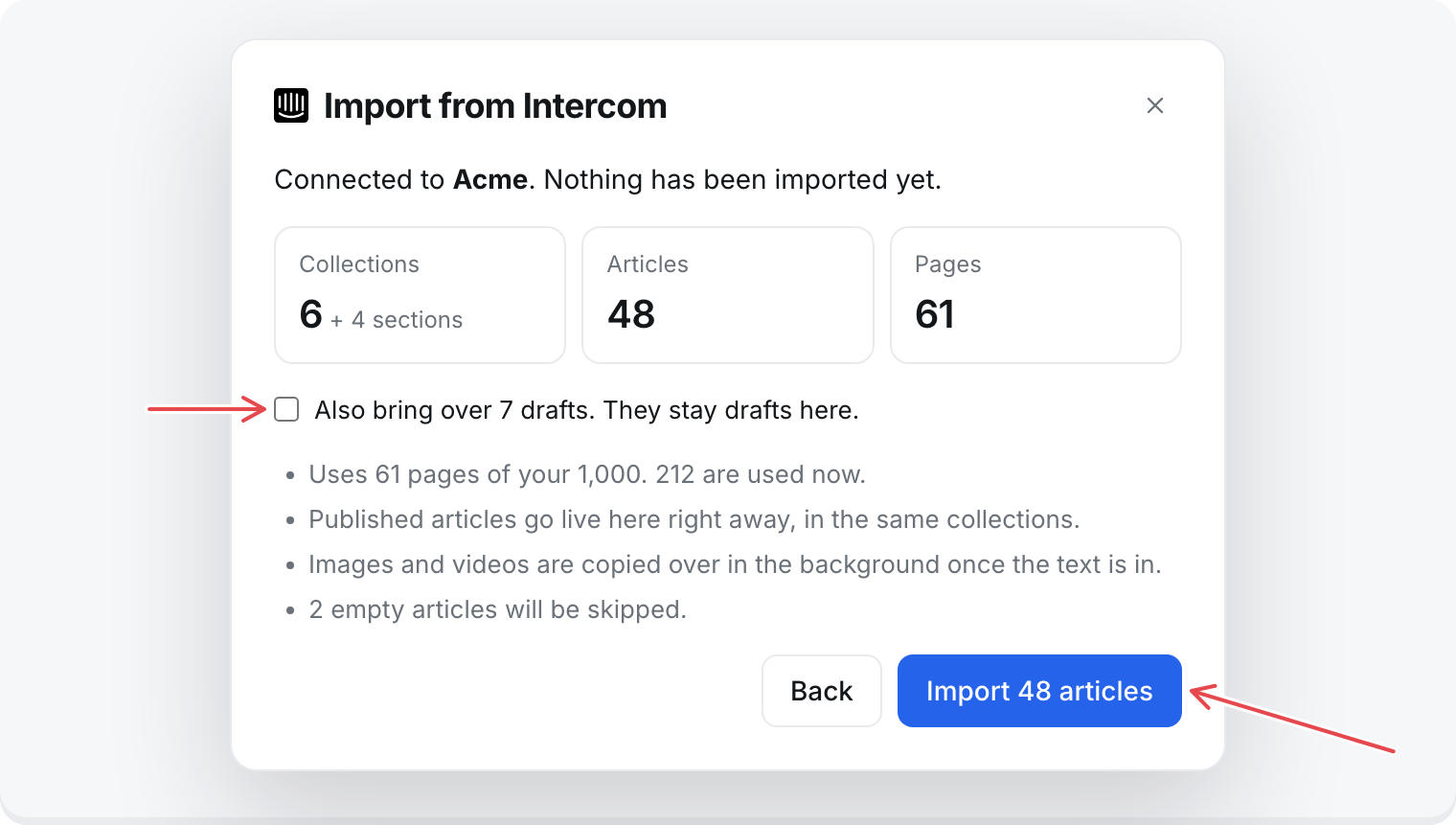
Published articles go live right away, in the same collections they had in Intercom. Only collections that hold an imported article are created. Empty articles are skipped.
You can close the window while it runs. The import keeps going, and articles appear as they land.
Images and videos
The text comes in first. Images and videos are then copied to chat.sh in the background, so your articles stop depending on Intercom. Until a file is copied, it still loads from Intercom.
Keep your old links
Each article remembers its Intercom address, like /en/articles/123-reset-your-password. Once the domain your Intercom help center used points at chat.sh, those addresses redirect to the new articles. Search engines and links in old emails land in the right place.
To move the domain, see Use your own domain.
Run it again
You can import again at any time, for example after adding articles in Intercom. Articles are matched to the ones you imported before, so nothing is duplicated:
- New articles are added.
- Articles you have not changed here are updated from Intercom.
- Articles you edited in chat.sh are left as you wrote them.
- Articles you wrote in chat.sh are never touched.
If an import stops before it finishes, run it again. It picks up where it left off.
Page allowance
The preview shows how many pages the import uses. If the articles go past your allowance, the ones that do not fit come in as drafts, so nothing is lost. Publish them once there is room.
If the token is refused
- Intercom did not accept that token: copy the Access token again from the app's Authentication page. The client secret will not work.
- That token cannot read your help center: give the app permission to read articles and the help center, then paste the token again.