Import from Help Scout
Bring your Help Scout Docs over in one go, with its collections, categories, images, and links.
Move a Help Scout Docs site to chat.sh without copying articles by hand. Every collection, category, and published article comes over, and the old links can keep working. Importing is part of the paid plans.
Get your Docs API key
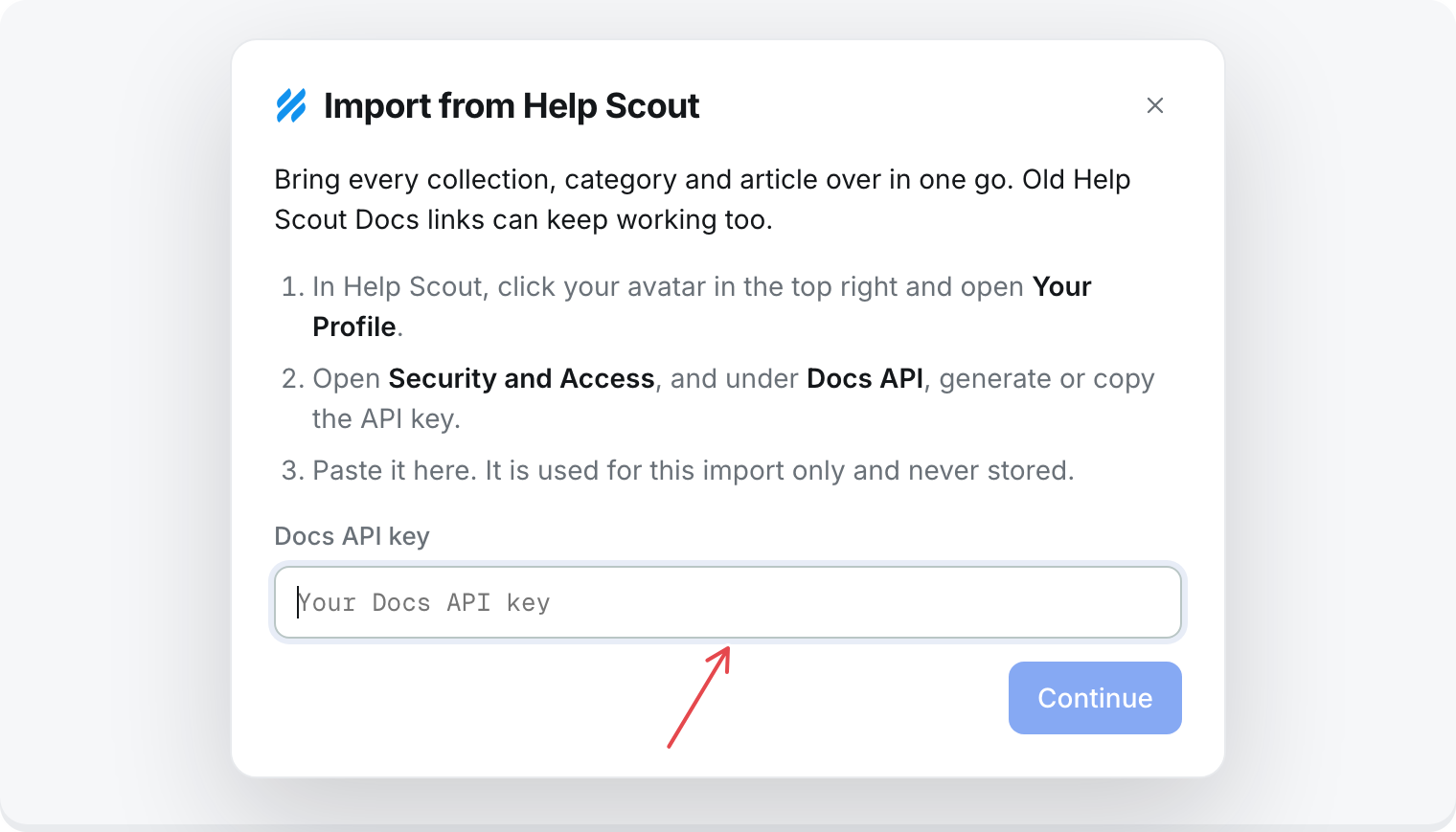
- In Help Scout, click your avatar in the top right and open Your Profile.
- Open Security and Access. Under Docs API, generate a key, or copy the one already there.
The key is used for this import only. chat.sh never stores it, and only reads your Docs with it. Nothing in Help Scout is changed.
Import
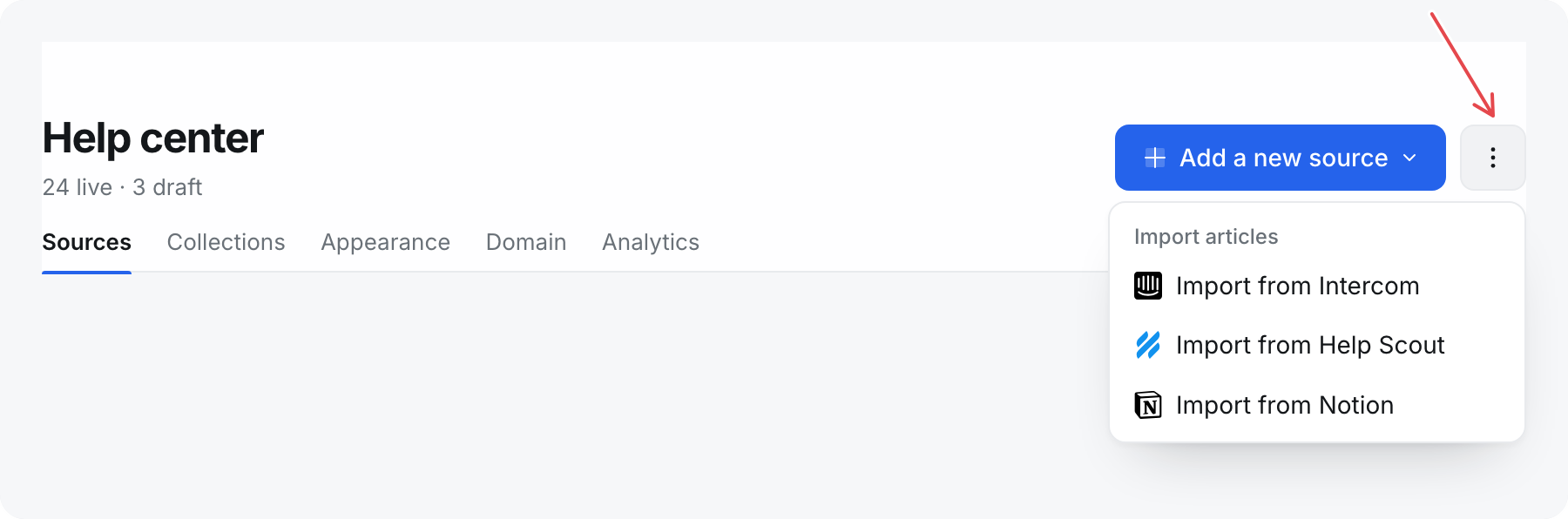
- Open Help center.
- Select the ⋮ button beside Add a new source, then Import from Help Scout.
- Paste the Docs API key and select Continue.
- If your account has more than one Docs site, pick the one to bring under Docs site to import.
- Check what will come over: collections, categories, articles, and about how many pages they use. To bring over unpublished articles too, tick Also bring over drafts. They stay drafts here.
- Select Import articles.
The import first reads your articles from Help Scout, one by one, and the window counts them in. Then they are written to your help center. Published articles go live right away. Empty articles are skipped.
You can close the window while it runs. The import keeps going, and articles appear as they land.
How your Docs are arranged
- Each collection becomes a collection.
- Each category becomes a section inside its collection. Help Scout's Uncategorized is not created; its articles sit directly in the collection.
- An article filed in more than one category goes under the first one, so it appears once.
- Articles in a private collection come in as drafts, so nothing that was private in Help Scout becomes public here.
If something lands in the wrong place, move it afterwards. An article's address does not include its collection, so moving it never breaks a link.
Images and videos
The text comes in first. Images are then copied to chat.sh in the background, so your help center stops depending on Help Scout. Until an image is copied, it still loads from Help Scout.
Videos embedded from YouTube, Loom, Vimeo, Vidyard, or Cloudflare Stream play in the article. Their covers are copied over.
Keep your old links
Each article remembers its Help Scout address, like /article/123-reset-your-password. Once the domain your Docs site used points at chat.sh, those addresses redirect to the new articles. Old category and collection links land on your help center's home page.
To move the domain, see Use your own domain.
Run it again
You can import again at any time, for example after adding articles in Help Scout. Articles are matched to the ones you imported before, so nothing is duplicated:
- New articles are added.
- Articles you have not changed here are updated from Help Scout.
- Articles you edited in chat.sh are left as you wrote them.
- Articles you wrote in chat.sh are never touched.
If an import stops before it finishes, run it again. It picks up where it left off.
Page allowance
The preview shows about how many pages the import uses, counting at least one page per published article. The exact count comes once the text is in. If the articles go past your allowance, the ones that do not fit come in as drafts, so nothing is lost. Publish them once there is room.
If the key is refused
- Help Scout did not accept that key: copy the key again from Your Profile, under Security and Access, then Docs API.
- That key cannot read your Docs: check that your Help Scout account has Docs, and that you copied the Docs API key.
- That Help Scout account has no Docs site to import: create or publish a Docs site in Help Scout first.