Install the messenger
Add one script tag to your site, with the corner button or your own.
The messenger goes on your site with one script tag. Open Messenger, then Install. The tag there already has your site ID in it.
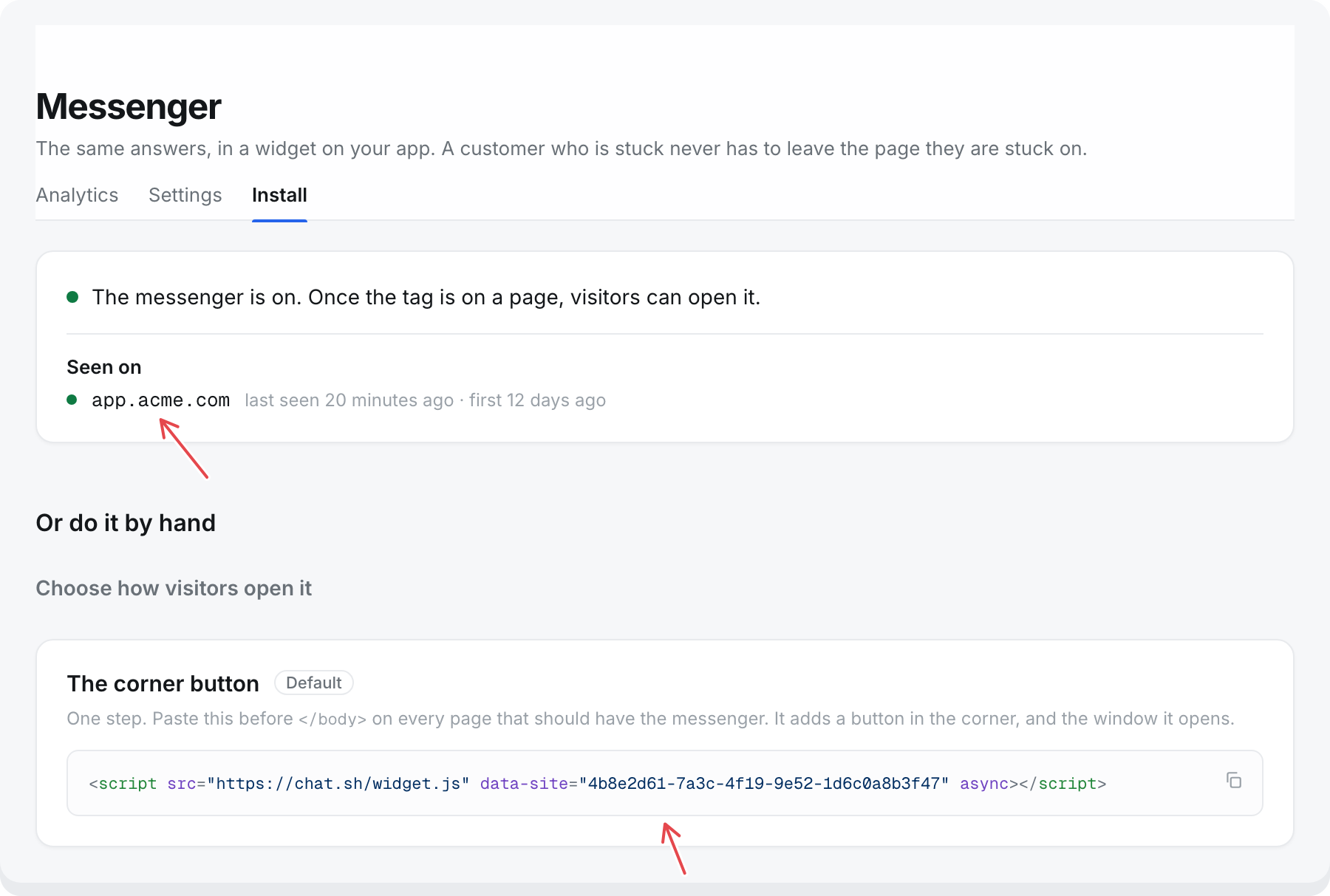
The corner button
Paste the tag before </body> on every page that should have the messenger:
<script src="https://chat.sh/widget.js" data-site="YOUR-SITE-ID" async></script>
A round button appears in the corner you chose in Settings. Visitors open the window with it.
Copy the tag from the Install page rather than this article. YOUR-SITE-ID has to be your own.
Your own button
Use this for a Help link in your menu or a button of your own, with no corner button.
- Add
data-launcher="none"to the tag:
<script src="https://chat.sh/widget.js" data-site="YOUR-SITE-ID" data-launcher="none" async></script>
- Make your button open it:
<button type="button" onclick="chatSh.open()">Help</button>
For a link:
<a href="#" onclick="chatSh.open(); return false;">Contact support</a>
To have both, use the plain tag and add step 2 only. The choice is per page, so some pages can have the corner button and others only your link.
Install with an AI coding agent
Under Install with your AI coding agent, select Copy prompt and paste it into Cursor, Claude Code, or another agent. The prompt has your tag, how to name signed-in users, how to sign them on your server, and how to check it worked. Select See the prompt to read it first.
Check that it is installed
Open a page with the tag, then reload the Install page. Under Seen on, each site the messenger has loaded on is listed with when it was first and last seen. A site is updated there at most once an hour.
If nothing is listed:
- The messenger may be off. The tag stays quiet until you turn it on in Settings, but it is still listed under Seen on.
- Check the browser console.
chat.sh messenger: missing data-sitemeans thedata-sitevalue is missing or wrong. - Load
widget.jsfrom chat.sh as shown. Do not download it or bundle it into your own code, or it will not update.
Leave it off some pages
There is no page list in the settings. Either leave the tag off those pages, or call chatSh.hide() on them. See Messenger JavaScript API.
Next.js
Put the tag in the root layout so it loads on every page, or use next/script with strategy="afterInteractive".
Things to know
- The site ID is not a secret. Anyone with it can show your messenger on their own page. Seen on shows where it has loaded.
- The messenger runs in its own frame, so your site's CSS cannot change how it looks.
- Name your signed-in users so your team knows who they are talking to. See Identify signed-in users.