Inbox notifications
Emails, sounds, and desktop alerts when someone is waiting on your team.
Each teammate chooses their own alerts, under Inbox, then Settings, in Just for you. Each switch saves as soon as you change it.
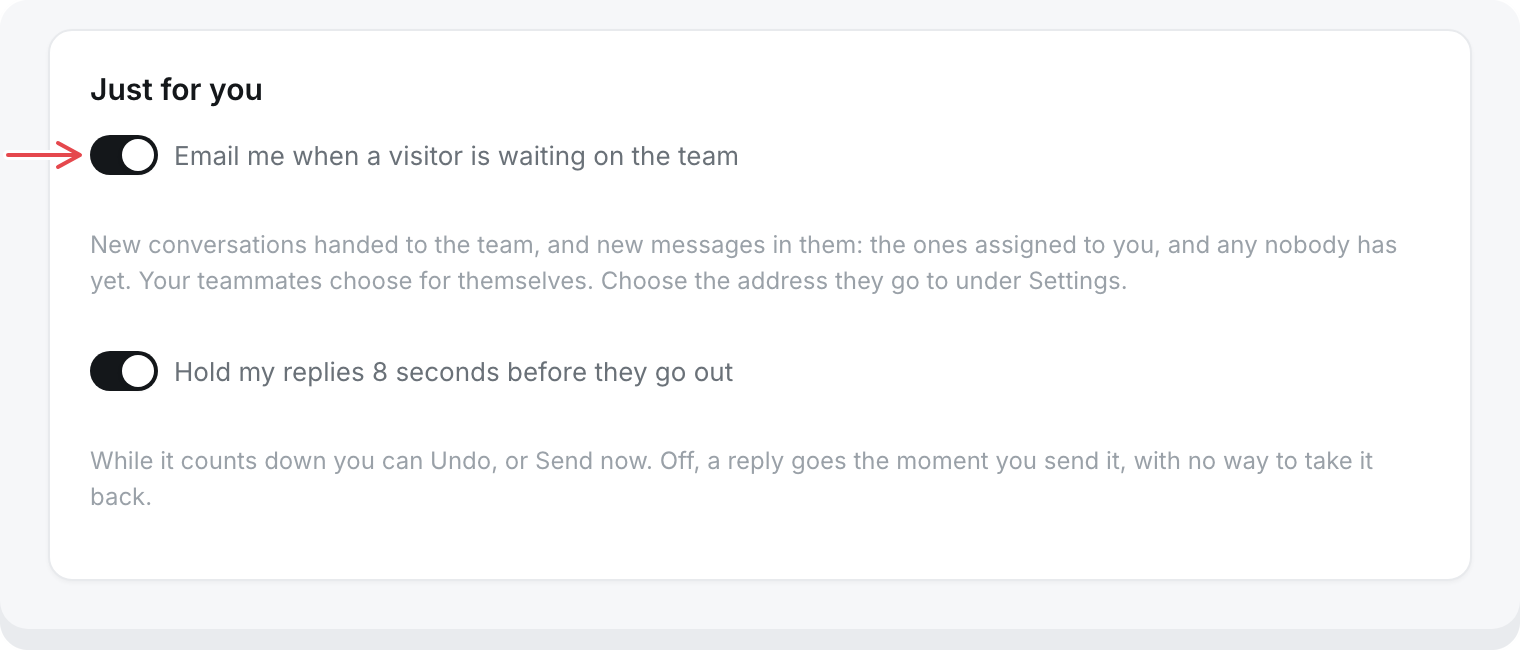
Email alerts
Email me when a visitor is waiting on the team is on by default. You get an email when:
- A visitor asks for a person in the messenger.
- A new email arrives at your support address.
- Someone writes again in a conversation your team has.
Who gets it:
- Assigned conversations: only the assignee.
- Unassigned conversations: everyone with the switch on.
- Anyone who has had that conversation open in the last 2 minutes is skipped.
You get at most one email per conversation every 10 minutes, unless your team has replied since.
The subject reads "[Workspace] Name: topic". Select Answer in the inbox to open the conversation, or reply to the email to answer from your mailbox. See Email in the inbox.
Change where they go
Alerts go to the email you sign in with. To use another address for one workspace:
- Open Settings, then General.
- Under Email notifications, enter the address in Send to.
- Open the link in the email sent to that address.
- Back on the page, select I've confirmed.
Until the link is opened, alerts keep going to the old address. Select Send again if the email did not arrive, or Cancel to stop the change.
Sound and desktop alerts
These work in the browser you set them in, while a chat.sh tab is open on any page of the workspace.
- Play a sound when a visitor writes: on by default.
- Turn on desktop notifications: your browser asks for permission. Desktop notifications show when the chat.sh tab is not in front of you.
The tab's title also counts what came in while you were away, like "(3) Inbox".
If your browser has blocked notifications for chat.sh, the page says so. Allow them in your browser's site settings, then try again.
There are no phone push notifications. Email alerts are the way to hear about conversations when chat.sh is closed.
Being shown as online
While you have an inbox page open, and for 5 minutes after you leave it, you count as online. When anyone on the team is online, visitors in the messenger see "The Acme team is online. Usually replies in a few minutes." See Talk to a person.