Use macros
Save replies your team sends often, insert them with /, and let AI fill in details like the customer's name.
A macro is a reply you write once and drop into any conversation. Macros belong to the whole team: every teammate can use, change, and delete them. A dynamic macro goes one step further: AI fills in the parts that change.
Create a macro
- Open Inbox, then Settings, then Macros.
- Select New macro.
- Add a Title, up to 100 characters. It is what you search for, and the customer never sees it.
- Write the Text, up to 8,000 characters.
- Select Save macro.
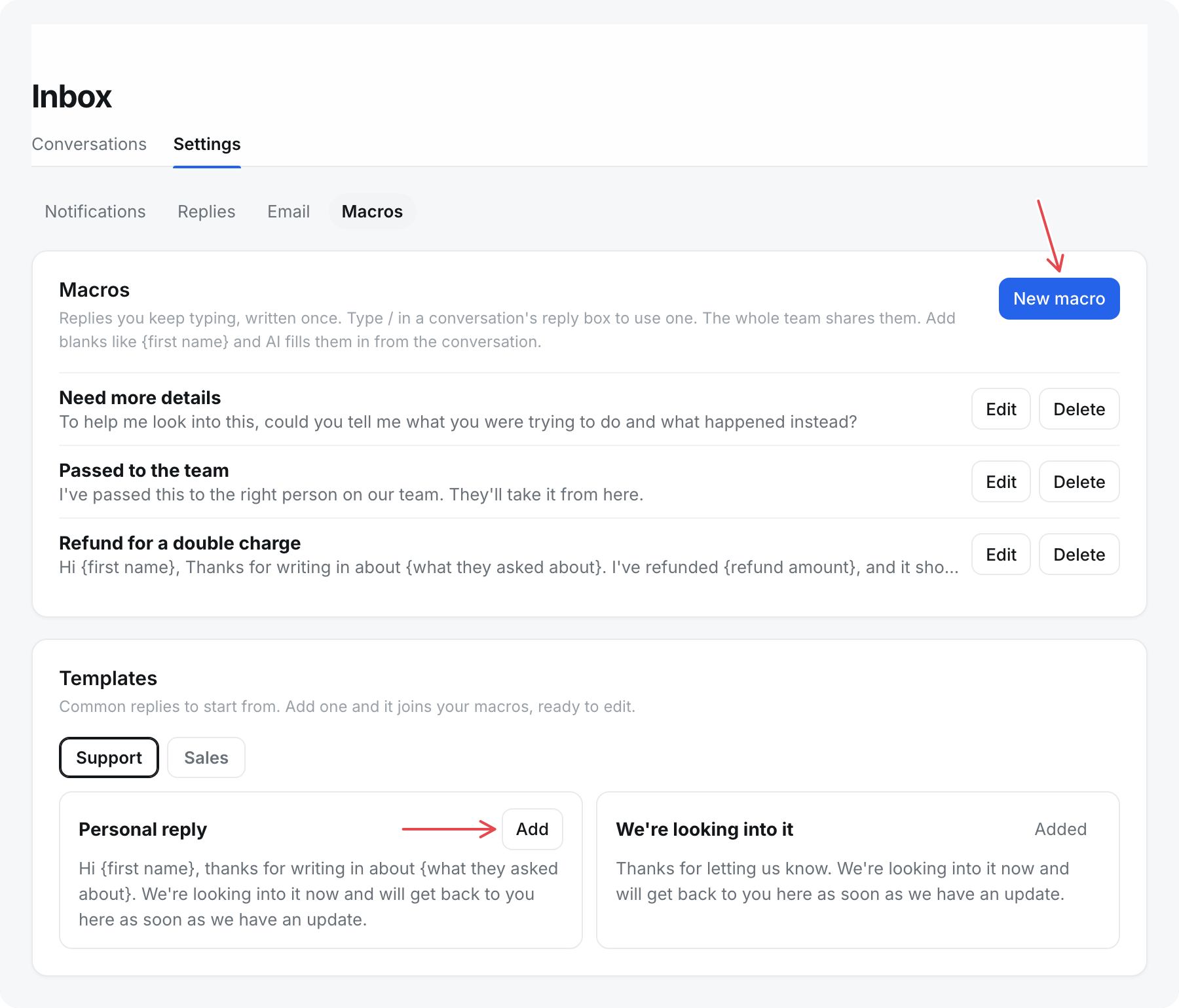
To change a macro, select Edit next to it. Delete removes it for the whole team and cannot be undone.
Start from a template
The Templates section on the same page has ready-made Support and Sales replies. Select Add and the reply joins your macros, ready to edit.
Insert a macro
- In the reply box, type
/at the start of a line or after a space. - Choose Macros.
- Search by any words in the title or text, or move through the list with the arrow keys.
- Press Enter, or select the macro.
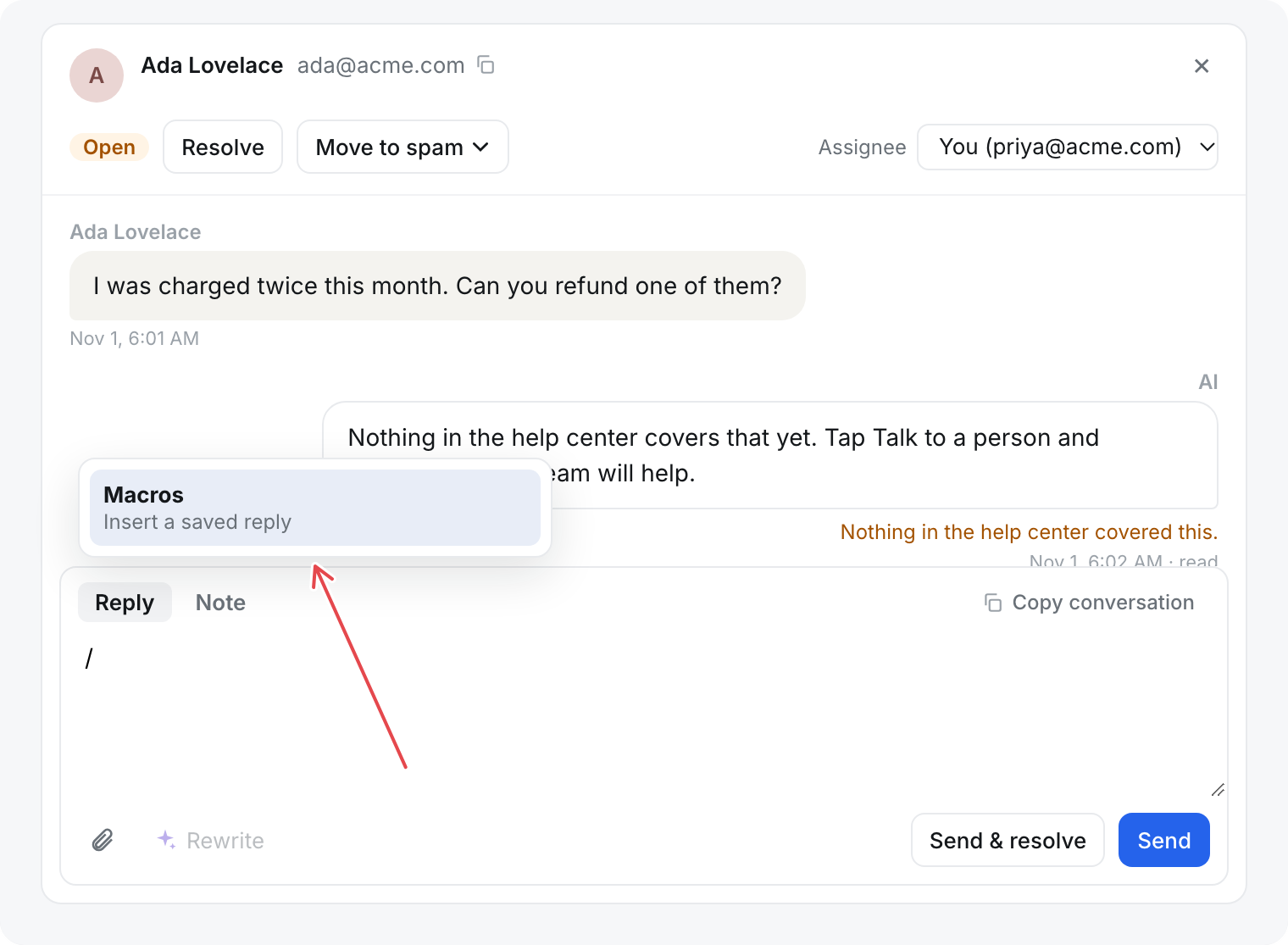
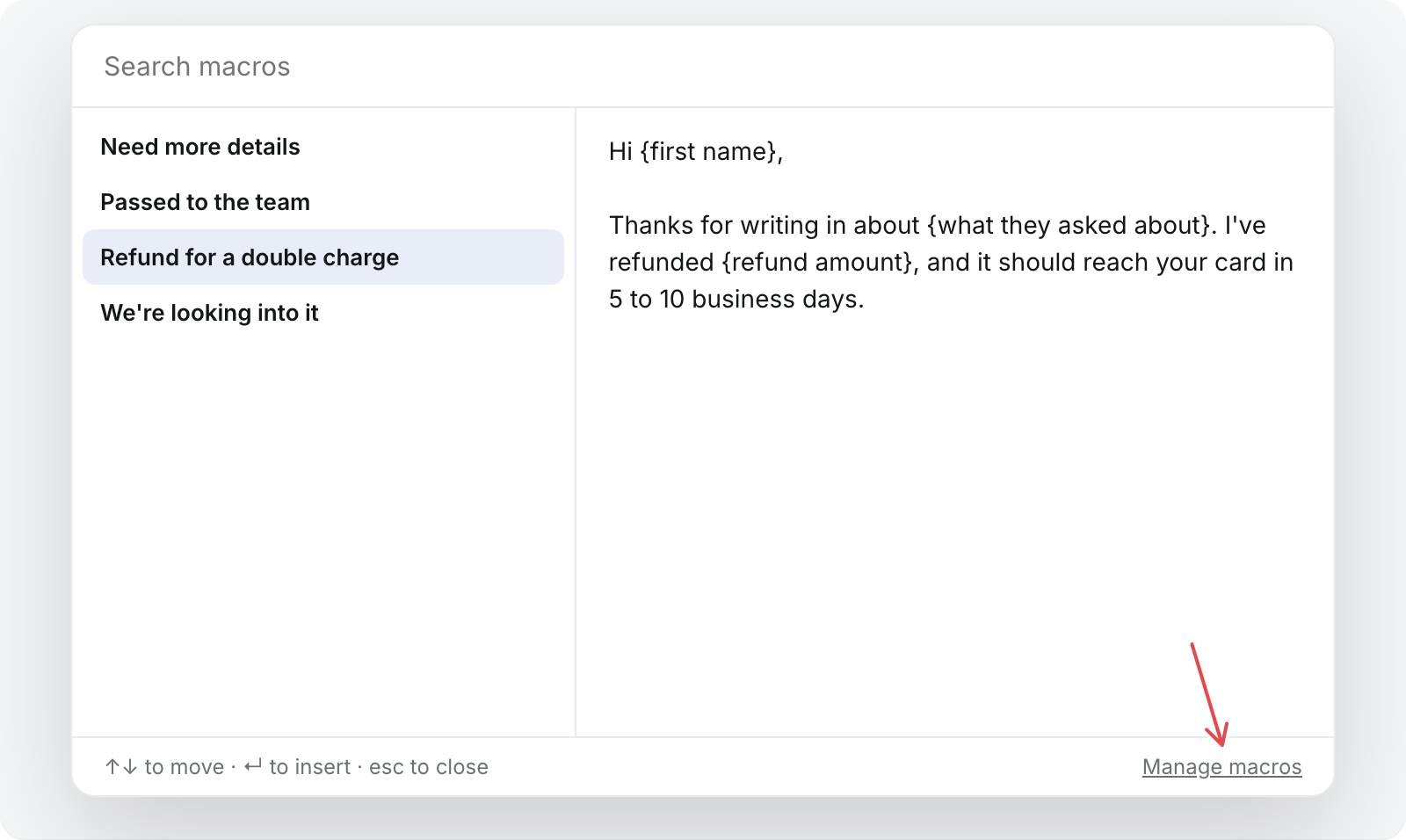
The macro takes the place of the /. Nothing is sent until you send it, so you can change the text first. Macros work in both Reply and Note.
Select Manage macros at the bottom of the picker to open your macros in a new tab. What is in the reply box stays there, and anything you add shows in the picker when you come back.
Dynamic macros
A dynamic macro is a macro with blanks that AI fills in from the conversation, so one reply can fit every customer.
Put anything that changes per customer in curly braces, like {first name}:
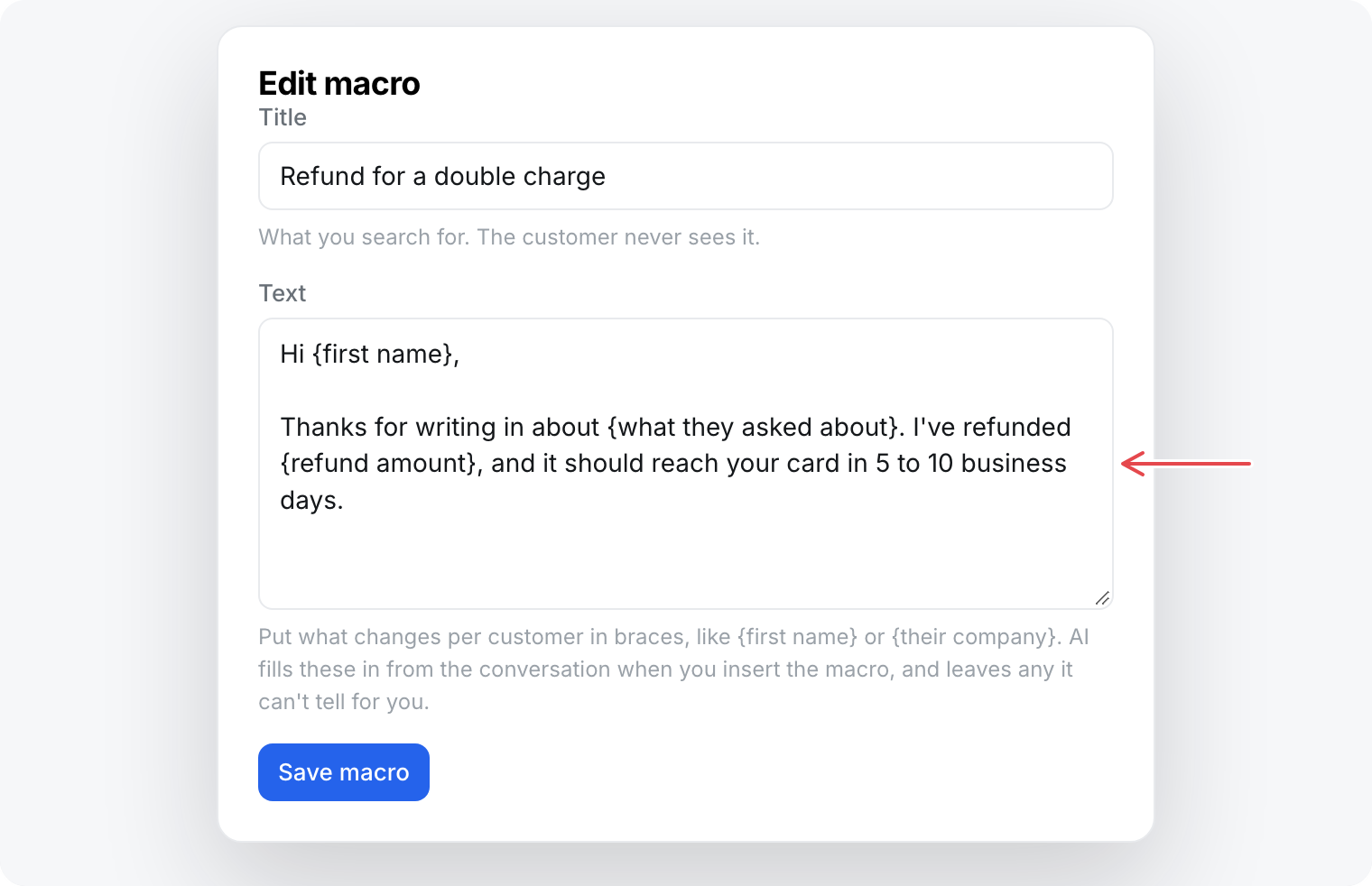
When you insert a dynamic macro, the picker shows "AI is filling in the blanks from this conversation…" for a few seconds, and the macro then goes into the box with the blanks filled in. Press Esc to cancel.
- The words in the braces tell the AI what to write there, so a blank can be a name, a company, or a short idea like
{a use case for their business}. - The AI reads the customer's name and email, the subject, and the last 12 messages. It does not read notes.
- Everything outside the braces stays exactly as you wrote it.
- The AI never puts a link in a blank.
- If the AI cannot tell what goes in a blank, the blank stays in its braces. The first one left is selected, so you can type over it.
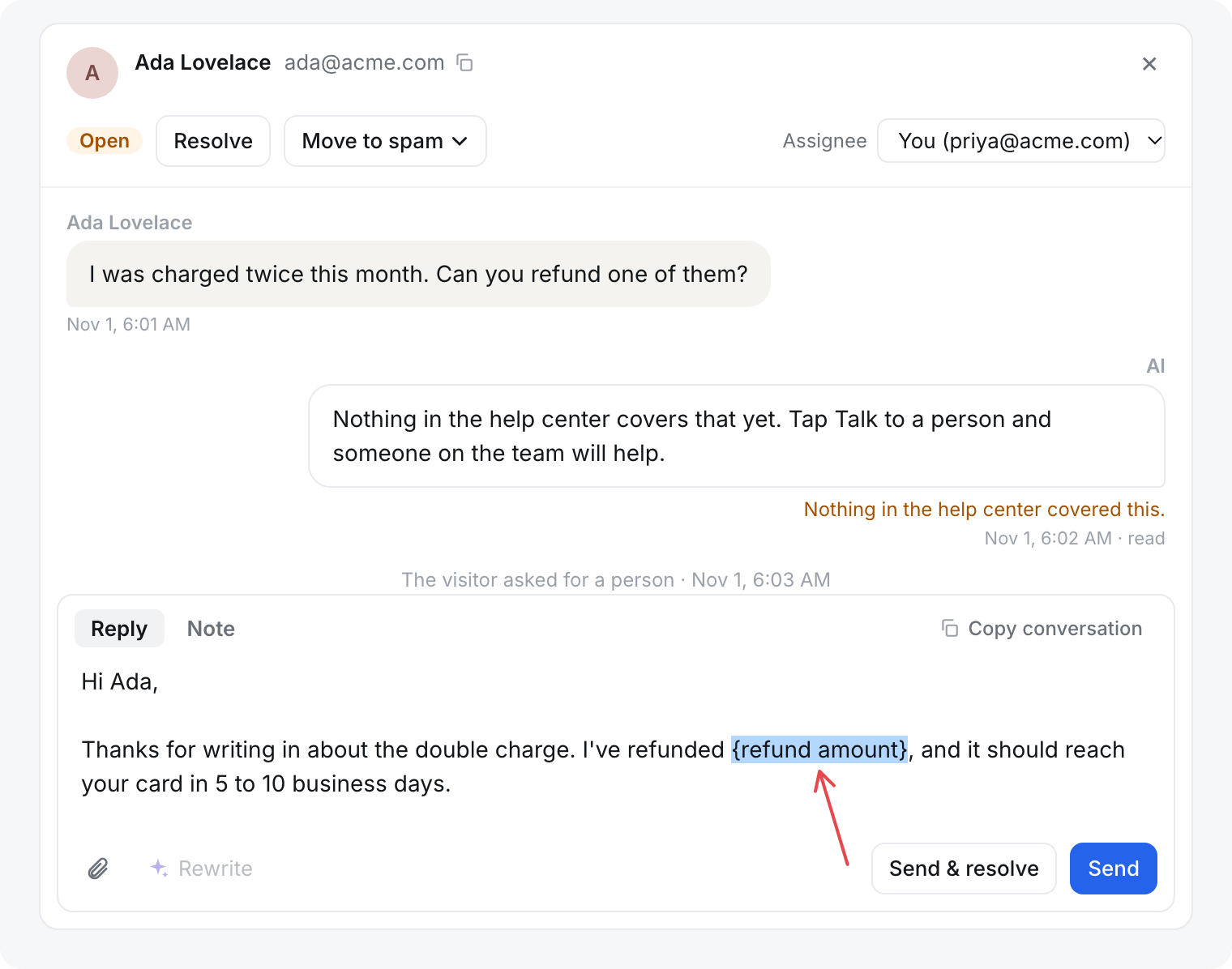
Read the macro before you send it. A blank left in braces does not stop the reply from going out.
Keep each blank on one line. Any text in braces counts as a blank, so a macro cannot contain literal braces like {id} without the AI trying to fill them.
AI limits
Filling in blanks uses no credits. Each teammate can fill in blanks 10 times a minute and 200 times a day. The daily count resets at midnight UTC.
Past a limit, or if the AI cannot be reached, the macro goes in with its blanks still open for you to fill. Macros with no braces never use AI.